How to apply a promo code when upgrading from a free trial to a paid plan
This guide walks you through how to apply a promo code while on a free trial. Since codes can only be applied to paid plans, you'll need to convert your subscription before applying a code. Read on to find out how.
NOTE: Promo codes can be added to new paid subscriptions even if a free trial has expired.
1. In Hosting Manager (for Web hosting), Starlight™ Hyperlift Manager (for Hyperlift), or Starlight™ Manager (for VM, Load Balancer, Volumes and Mail Bridge), click Manage next to your plan, then click the Switch to paid button in the right-hand menu:
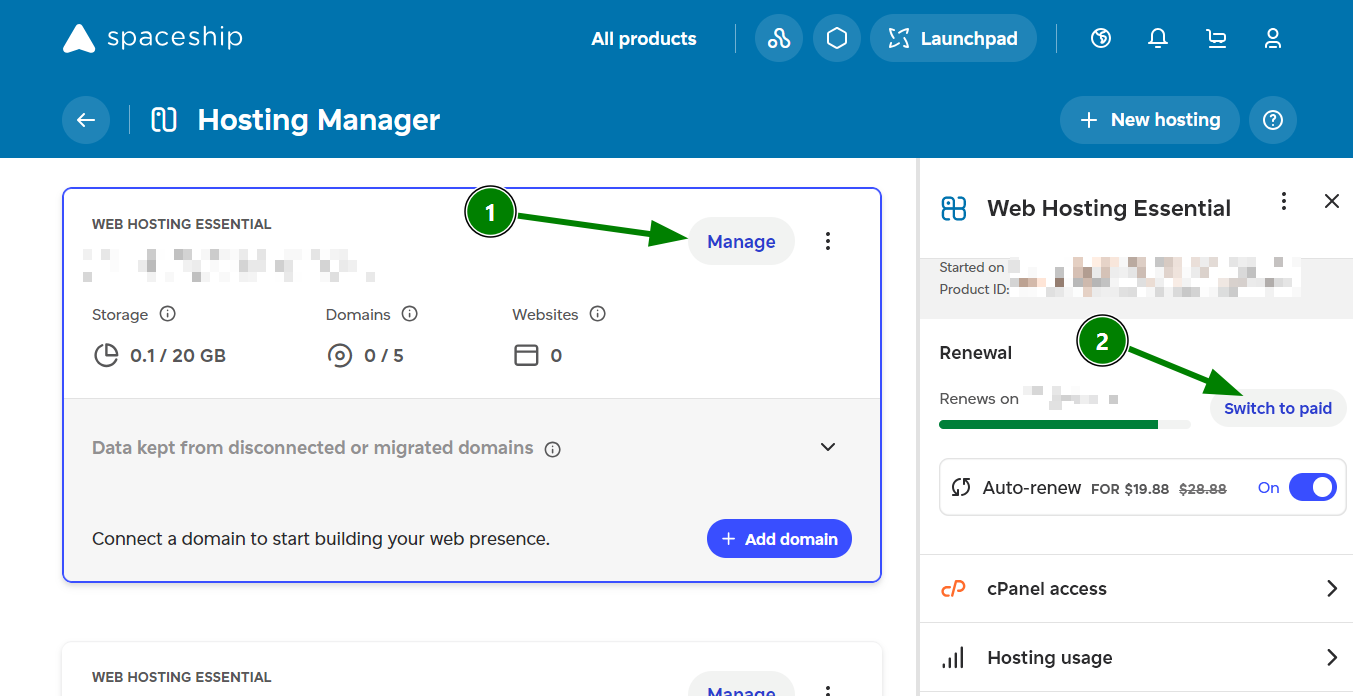
NOTE: Converting to a paid plan resets your expiration date to one billing cycle (monthly, quarterly, yearly, or biyearly) from the day you switch, regardless of any remaining trial days.
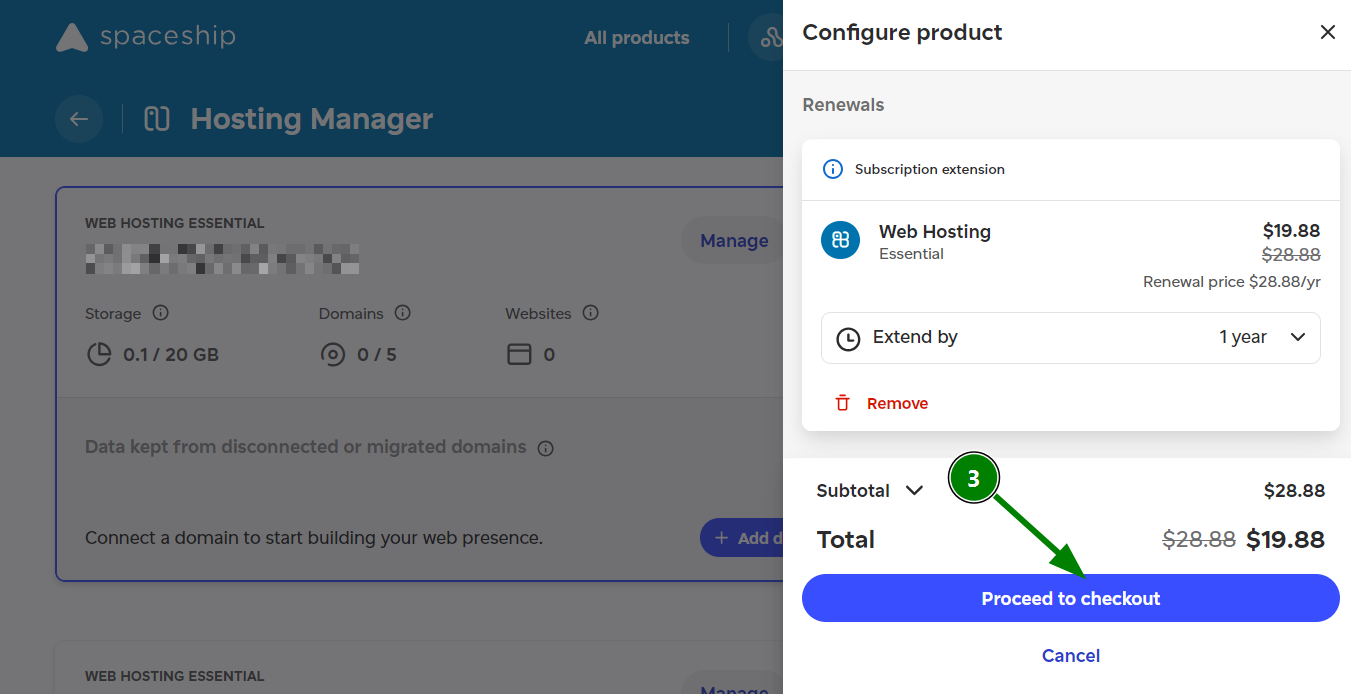
2. In the configuration panel, click Proceed to checkout:
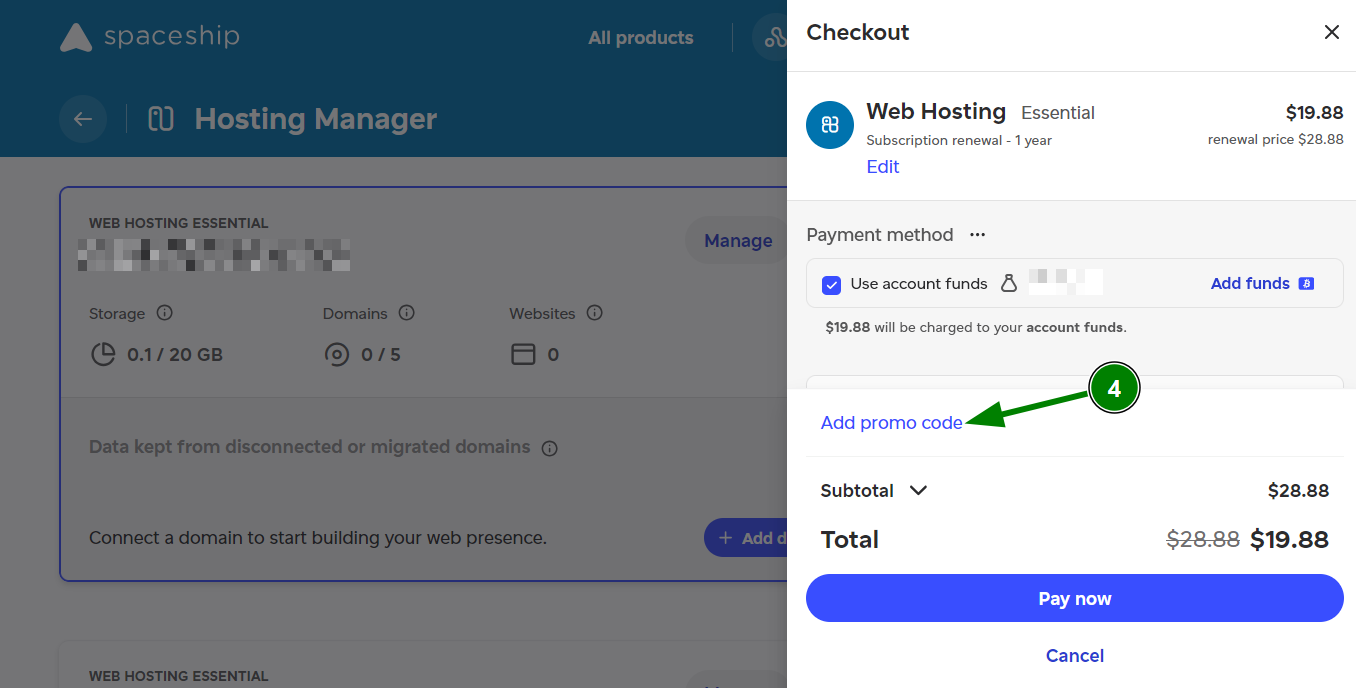
3. On the checkout screen, click Add promo code, enter your code, and click Apply:
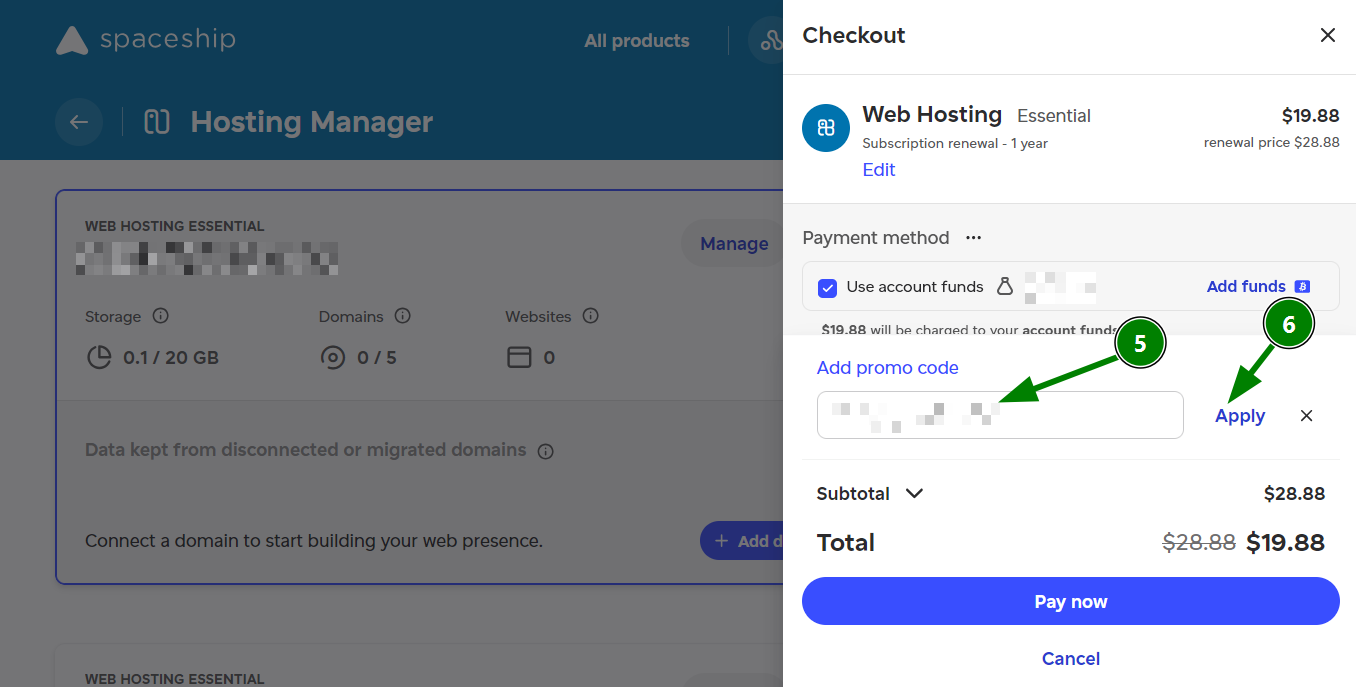
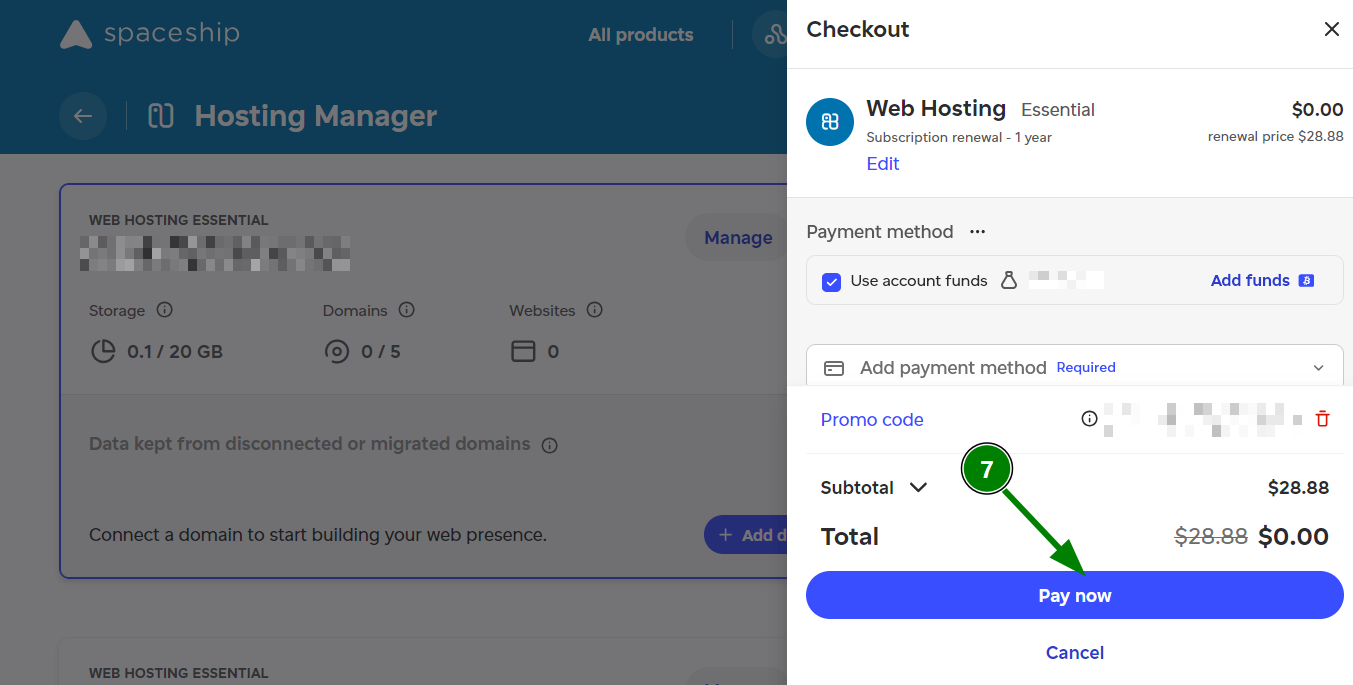
4. The reduction should now be reflected in the final price. Proceed to checkout by clicking Pay now:
NOTE: The promo code should be valid for the selected product and billing cycle. If the discount is not reflected in the total price after the code has been entered, it may have expired or been entered incorrectly.