
Every day, hackers target WordPress websites with deceptive attacks designed to steal data, install malware, and hijack your online presence. The good news? You can protect yourself with the right security strategy. This guide will show you exactly how to secure your WordPress site from hackers using simple, tested methods that are proven to work.
The alarming reality of WordPress security threats
WordPress security threats have reached crisis levels. In 2024 alone, researchers discovered4,448 new vulnerabilities affecting WordPress sites – a staggering 155% increase from the 1,745 vulnerabilities found in 2023. Even more concerning, approximately 337,500 WordPress websites are infected with malware on any given day.
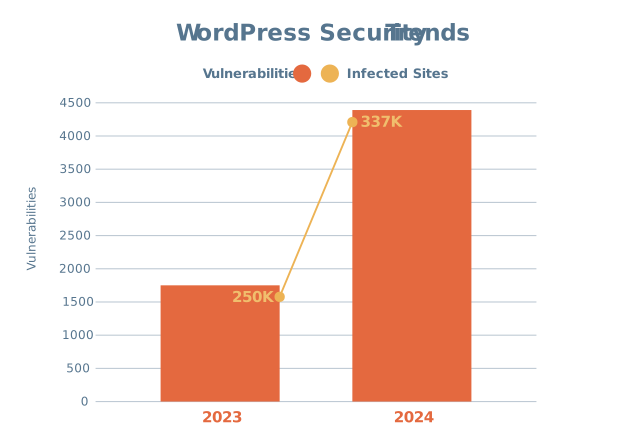
Nearly8,000 new vulnerabilities were reported across the WordPress ecosystem in 2024, with the vast majority targetingplugins and themes rather than WordPress core. This means your site's security depends heavily on the third-party components you install.
Why are hackers so focused on WordPress? Simple – it powers close to half of all websites on the internet. This massive market share makes WordPress an attractive target for cybercriminals looking to maximize their impact with minimal effort.
Where your WordPress site is most vulnerable
Understanding where attacks originate helps you focus your security efforts more effectively. The data reveals some surprising patterns about WordPress vulnerabilities.
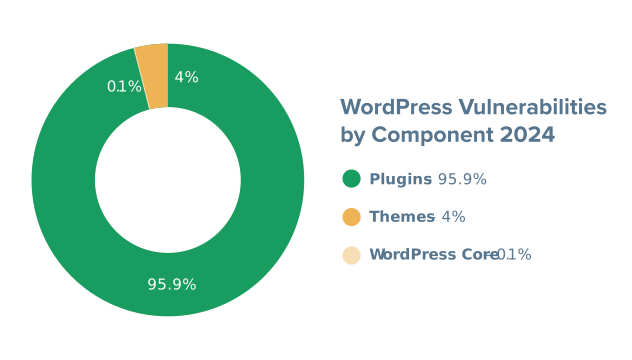
Plugins represent your biggest security risk by far. A shocking 96% of all WordPress vulnerabilities in 2024 were found in plugins, while themes accounted for 4% and the WordPress core itself only 0.1%. This means that every plugin you install potentially opens a new attack point for hackers.
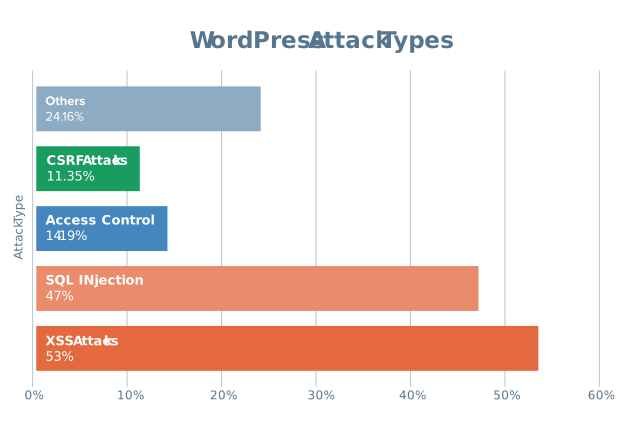
The most dangerous attack methods targeting WordPress sites include cross-site scripting (XSS) and SQL injection attacks. XSS attacks accounted for 53.3% of allnewly identified security vulnerabilities, while SQL injection represented 47% of disclosed vulnerabilities.
These attacks exploit poor input validation in plugins and themes. XSS attacks inject malicious scripts into your website that can steal user data and session tokens. SQL injection attacks target your MySQL database directly, potentially giving hackers access to all of your site's information.
Basic WordPress security measures for every site
Your first line of defense involves implementing fundamental security practices that address the most common attack vectors. These measures form the foundation of any robust WordPress security strategy.
Keep all software updated
Since most vulnerabilities exist in the files and programs that comprise your website, keeping them up to date is critical.
WordPress coreupdates patch security vulnerabilities, so install them as soon as they become available.
Keeping your plugins updated is essential, as outdated plugins are the most common source of vulnerabilities and can quickly become targets for attackers.
Regularly updating your themes and child themesensures you have the latest security patches and helps maintain compatibility with WordPress core and plugins.
Set up automatic updates for WordPress core and enable automatic WordPress updates for plugins whenever possible.
Implement strong authentication measures
Weak passwords are still one of the primary ways hackers gain access to WordPress sites. Never use "admin" as your username, and create a complex password that combines uppercase and lowercase letters, numbers, and special characters.
Read more about securing login credentials in our roundup of top ways to protect your site.
Two-factor authentication (2FA) adds a beefed-up security layer, making it significantly harder for hackers to access your site even if they obtain your password. Enable 2FA for all user accounts, especially administrators.
You can also try a newer technology, passkeys, which offer passwordless authentication using cryptographic key pairs stored securely on your device. Passkeys are even more secure than traditional passwords and 2FA, as they eliminate the risk of phishing and credential theft while allowing users to log in with biometrics or device-based authentication.
Get comprehensive security protection
Several well-known WordPress security tools are available that provide more layers of basic monitoring and protection. Wordfence and Sucuri are popular WordPress security plugins that work on any host and offer features like malware scanning, firewall protection, and login security. Guardian Suite is built into EasyWP hosting and focuses on automated security, including automatic updates and malware removal. It also includes HackGuardian, which puts your WordPress file system into a partial, read-only mode, blocking unauthorized changes.
Add a firewall for real-time threat blocking
While security plugins offer a range of protections, a dedicated firewall actively monitors and filters incoming traffic, blocking malicious requests before they reach your site. This helps stop common attacks like brute force logins, SQL injections, and cross-site scripting at the gate. Many WordPress security plugins include a built-in firewall, but you can also use a web application firewall (WAF) from your shared hosting provider for an extra layer of defense.
Explore WAF technology in more depth with our guide to staying protected with shared hosting.
Regularly clean up unused plugins and themes
Unused plugins and themes aren’t just clutter—they’re a real security risk. Every inactive or outdated plugin or theme is another potential entry point for hackers, even if it’s not currently activated. Make it a habit to review your installed plugins and themes regularly, deleting anything you no longer use. This reduces your attack surface and keeps your WordPress installation lean and secure.
Advanced protection strategies for maximum security

Beyond basic security measures, implementing advanced protection strategies provides comprehensive defense against sophisticated attacks.
Choose secure hosting and infrastructure
Your hosting provider plays a crucial role in your site's security. Hosting environments should be carefully compared and evaluated for their security features, including how they secure the web server and server software.
Cloud WordPress hosting providers offer specialized security features including hardened server configurations, DDoS protection, and network-level security measures. These providers typically include automatic updates, daily backups, and expert security monitoring. If you host multiple websites or applications on the same server, be aware that vulnerabilities in one site can affect others, so isolating sites or using dedicated resources is recommended.
Install an SSL certificate
Ensure your hosting provider offers SSL certificates, as these are essential for protecting your website and your visitors. An SSL certificate encrypts all data transmitted between your visitors’ browsers and your server, making it unreadable to anyone who tries to intercept it. This is especially important for sensitive information, such as passwords, payment details, and personal data.
But SSL certificates do more than just encrypt data. They also verify your website’s identity through a process managed by trusted Certificate Authorities (CAs). When a CA issues an SSL certificate, it confirms that your website is legitimate, helping to prevent phishing attacks and domain spoofing. This verification is what allows browsers to display trust indicators like the padlock icon and “https://” in the address bar, reassuring visitors that your site is safe to use.
Leverage robust backup and recovery systems
Regular backups are crucial for a swift recovery from security incidents. Your backup strategy should include backing up the entire WordPress installation, including core WordPress files, media, and all associated databases. Creating and securely storing backup files ensures you can restore your site after data loss, cyberattacks, or server failures.
Manage user roles to reduce vulnerabilities
WordPress lets you assign different user roles, each with its own set of permissions. By giving users only the access they need—such as Editor, Author, or Contributor instead of Administrator—you limit the potential damage if an account is compromised. Regularly review your user list and adjust roles to ensure no one has more privileges than necessary. This simple step can prevent accidental changes and block attackers from gaining full control over your site.
Monitor user activity logs
Keeping an eye on user activity logs helps you spot suspicious behavior early. Activity logs track changes like logins, plugin installations, content edits, and more, so you can quickly identify unauthorized actions. Many security plugins include this feature, making it easy to review recent activity and investigate any anomalies. Regular monitoring of these logs is a proactive way to catch threats before they escalate.
Disable XML-RPC to block common attacks
XML-RPC is a WordPress feature that allows remote connections to your site, but it’s also a frequent target for hackers. Attackers often exploit XML-RPC to launch brute force attacks or gain unauthorized access. If you don’t use remote publishing tools or apps that require XML-RPC, it’s best to disable it entirely. You can do this with a plugin or by adding a simple rule to your site’s .htaccess file, further reducing your site’s exposure to automated attacks.
Secure your WordPress site before hackers strike

WordPress security requires ongoing vigilance, but implementing these measures dramatically reduces your risk of becoming a victim. Start with the highest-priority items and work systematically through the complete checklist. Your website's security and your peace of mind depend on taking action today.
Frequently asked questions
There’s no single “safe” number, but the more plugins you install, the higher your risk of security issues and slowdowns. Focus on quality over quantity. Only keep plugins that you truly need, and regularly audit your list to remove any unused or redundant ones.
Free plugins can be safe, but you need to be selective. Always download plugins from the official WordPress repository or trusted developers. Check reviews, update history, and active installations. Avoid plugins that haven’t been updated in a long time, have a small user base, or lack support.
Before installing a plugin, check its reviews for performance complaints and see when it was last updated. After installation, use tools like GTmetrix or PageSpeed Insights to test your site’s speed before and after activating the plugin. If you notice a significant slowdown, consider alternative options or contact the plugin developer for advice.

Suggested articles




Share your thoughts