How to set up a FastVPN extension on Chrome
The following is required to set up the FastVPN Chrome extension:
A secure FastVPN connection (Don’t have one? Sign up here!);
A working internet connection;
Chrome browser.
Once the Chrome browser is installed and ready to go, to complete the configuration, follow the steps below:
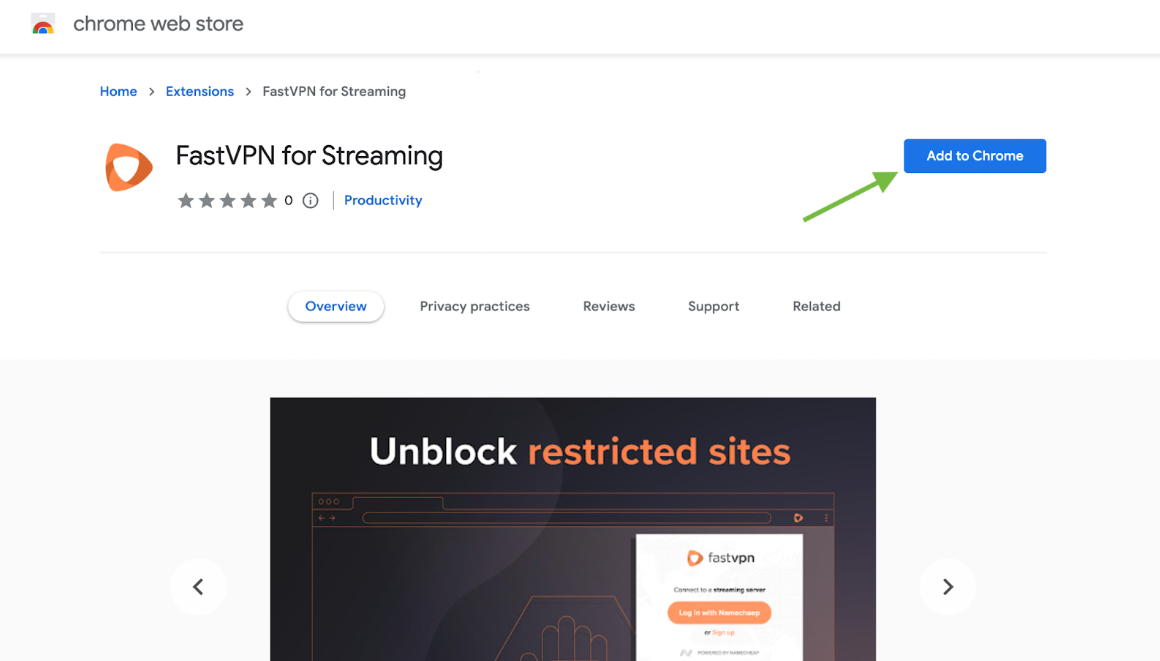
Download FastVPN for Streaming extension from the Google Chrome Web Store.
Click on the Add to Chrome button:
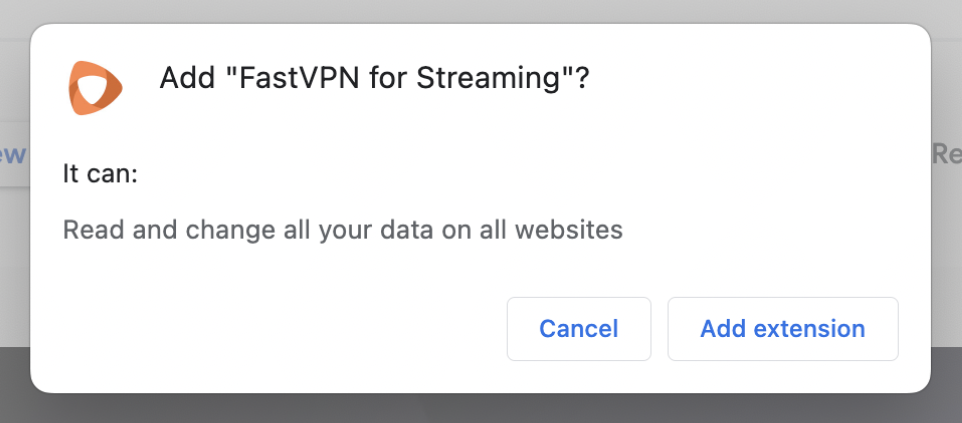
Chrome might ask you if you want to add the extension. Click Add extension:
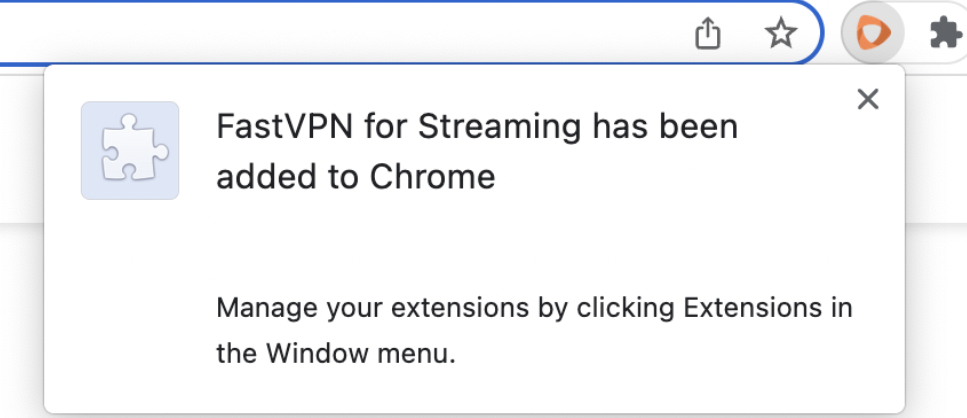
Then you will receive a FastVPN notification that the extension was added successfully:
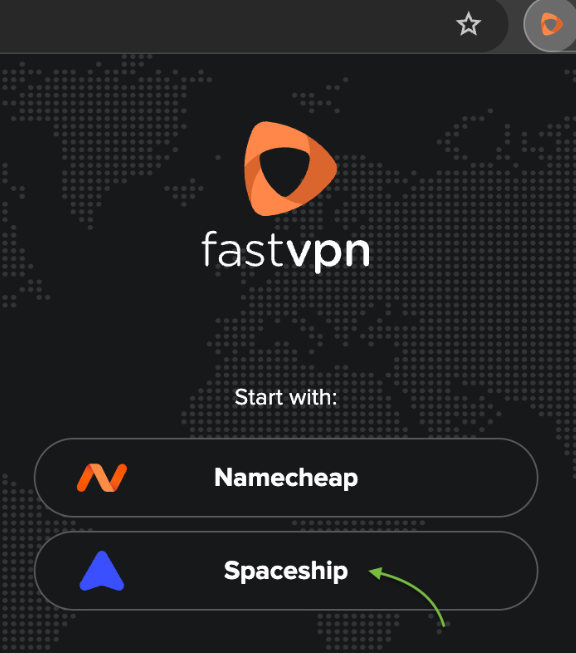
After the installation is finished, the FastVPN icon will appear on the toolbar in the top-right corner of the browser. Click on the FastVPN icon and you will be prompted to sign into your Spaceship account or to create a new account:
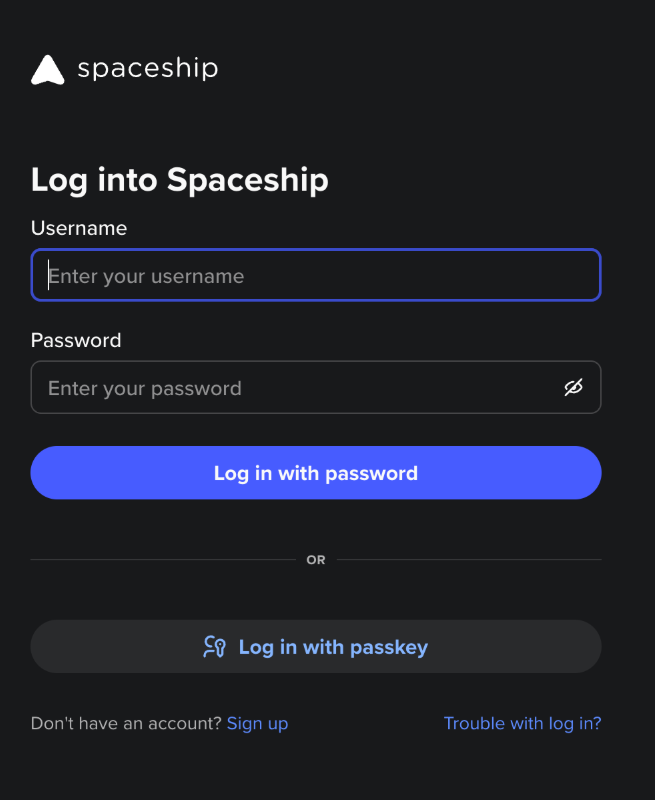
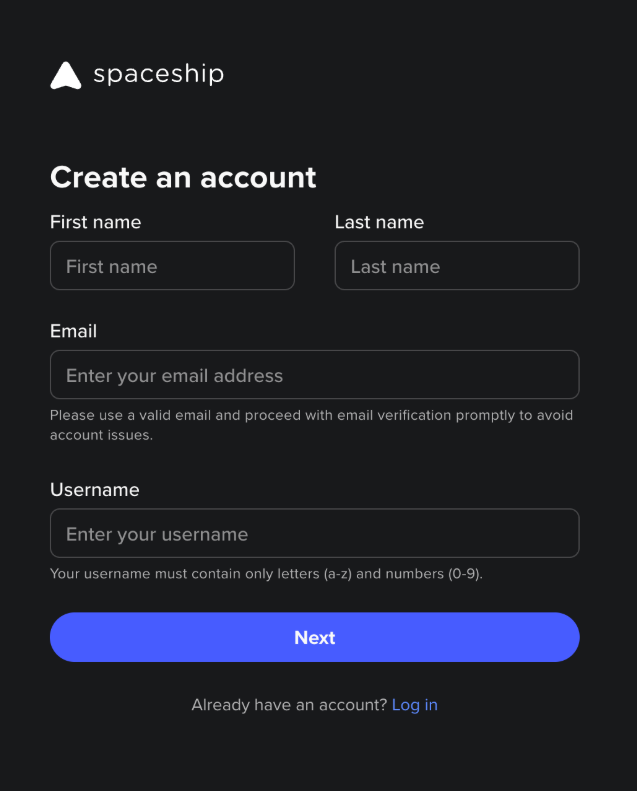
Once signed in, you will see the confirmation that FastVPN for Streaming is ready:
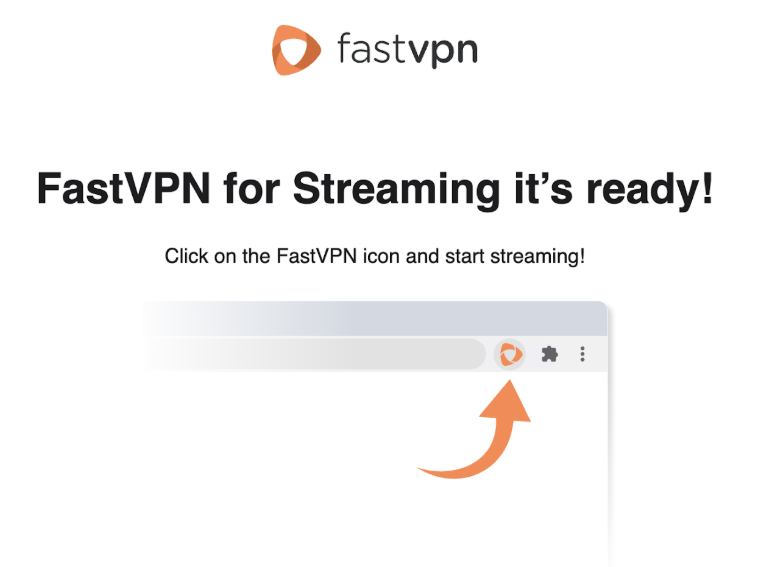
To open the FastVPN Chrome extension, click on the FastVPN icon on the toolbar in the top-right corner of the browser:
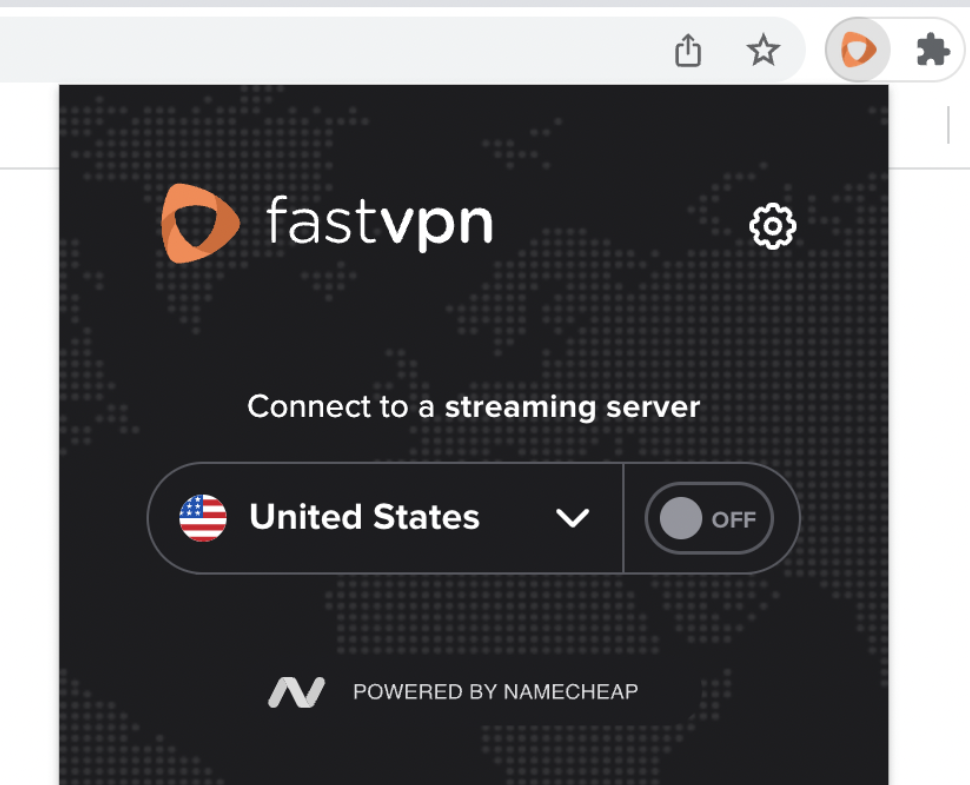
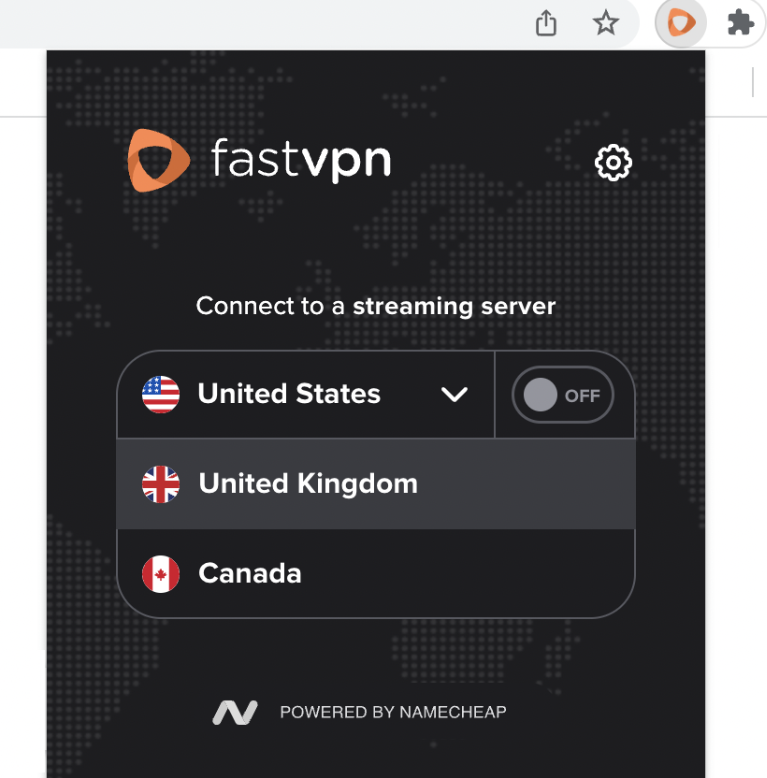
Choose a desirable location from the list of all available locations and click on the location to connect:
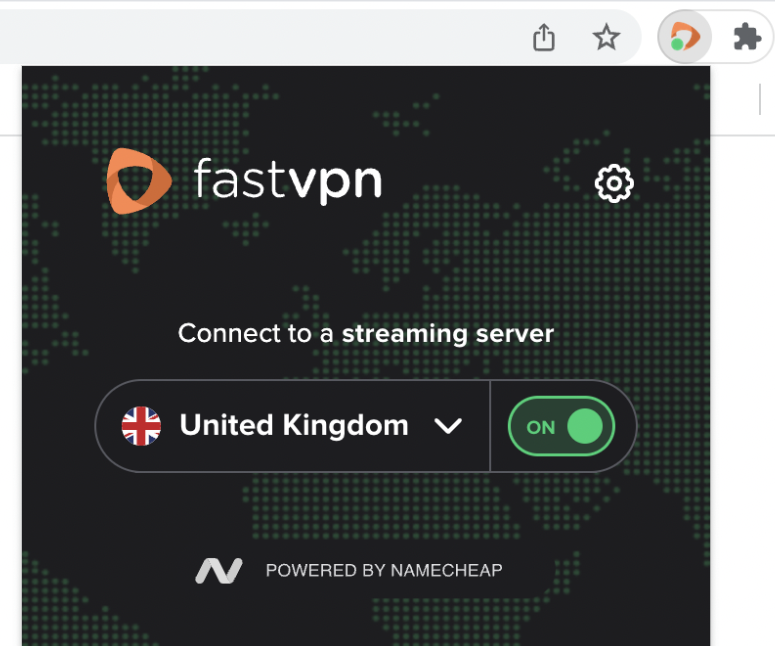
Once connected, the status will be updated:
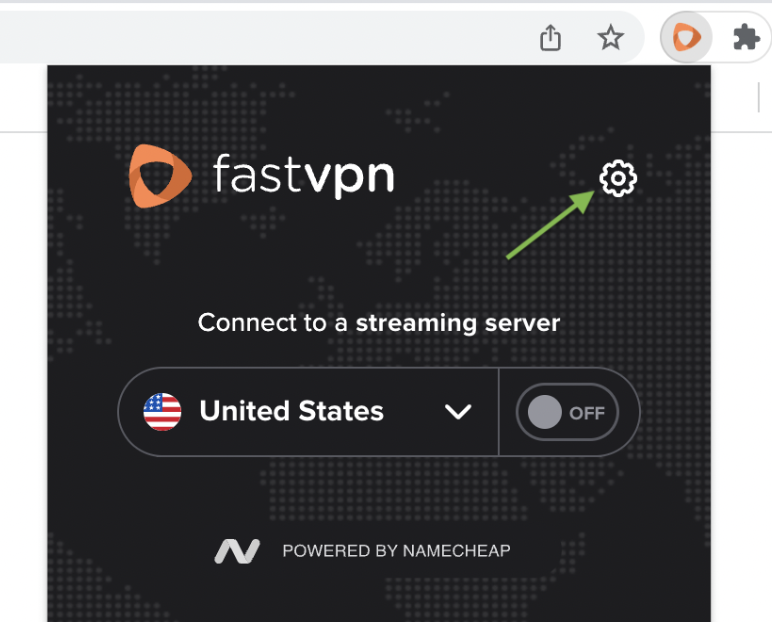
To access the Settings of the application, click on the gear icon:
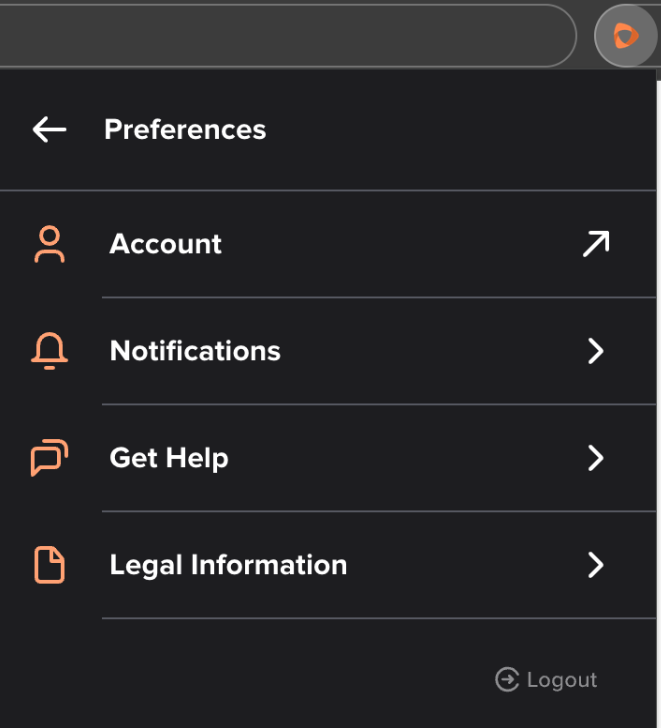
Under Account, you will have:
- Subscription information: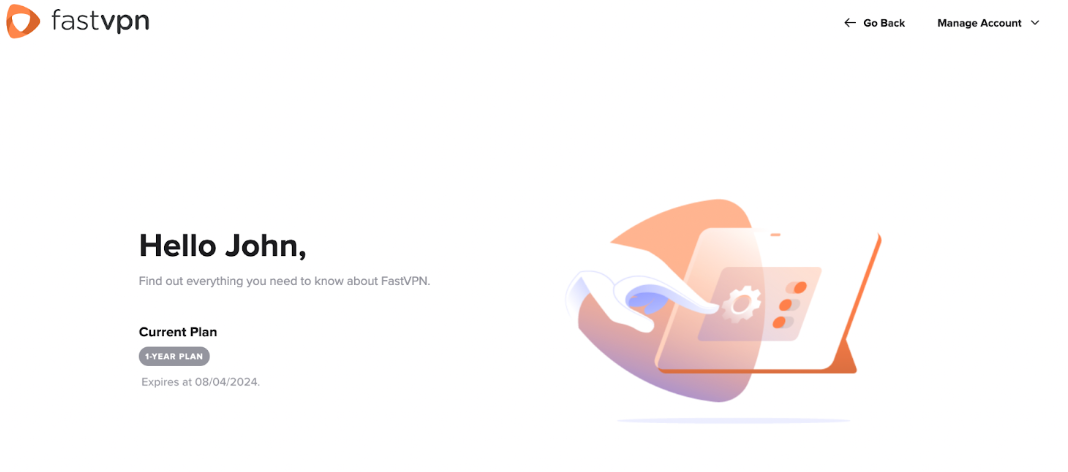
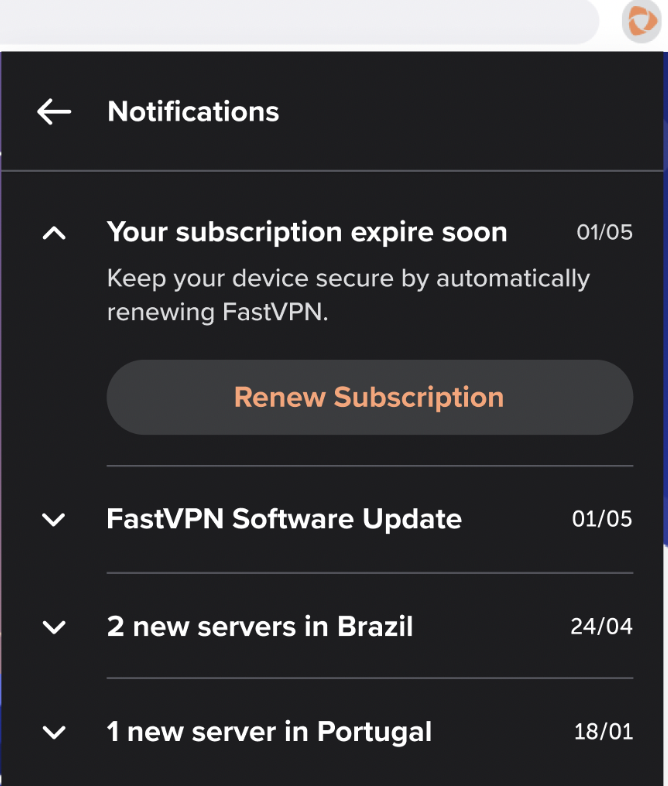
Under Notifications, you will be notified of important announcements and alerts:
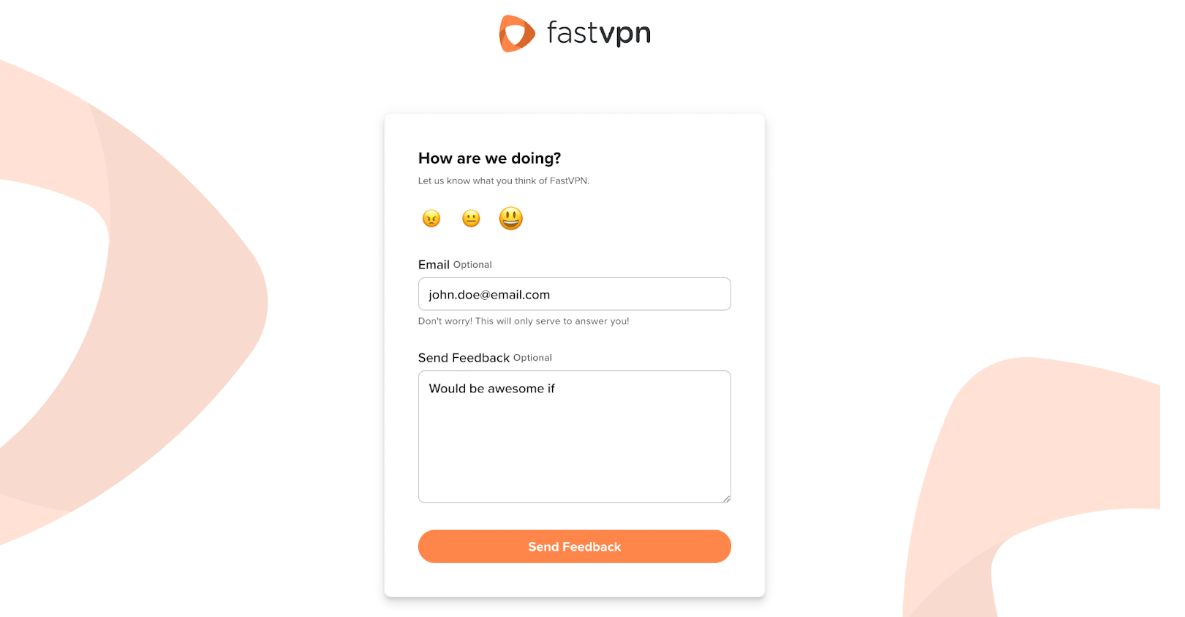
Send Feedback option allows you to submit feedback from the app:
Under Get Help, you will have:
- Frequently Asked Questions with access to our knowledge base;
- Customer Support option allowing you to contact our support directly by following the “Chat with a Live Person” link: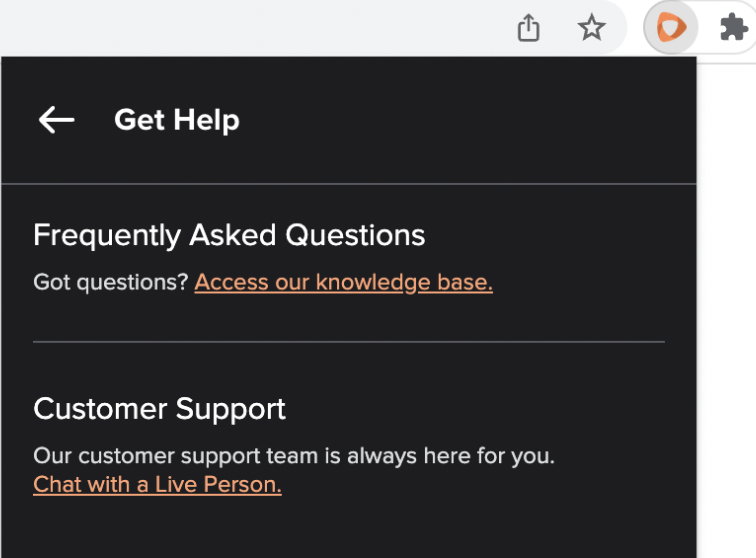
Under Legal Information, you will have:
- Terms of Service;
- Privacy Policy;
- Licenses.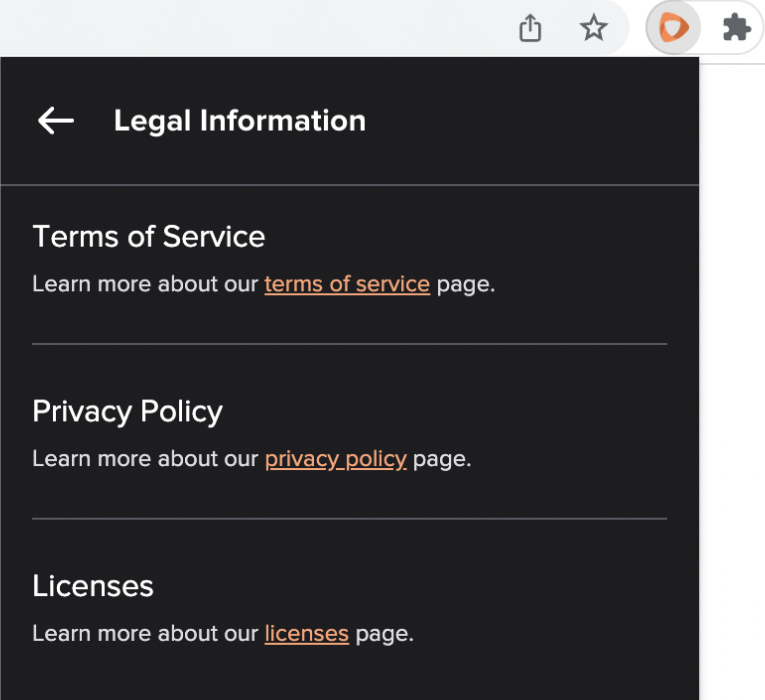
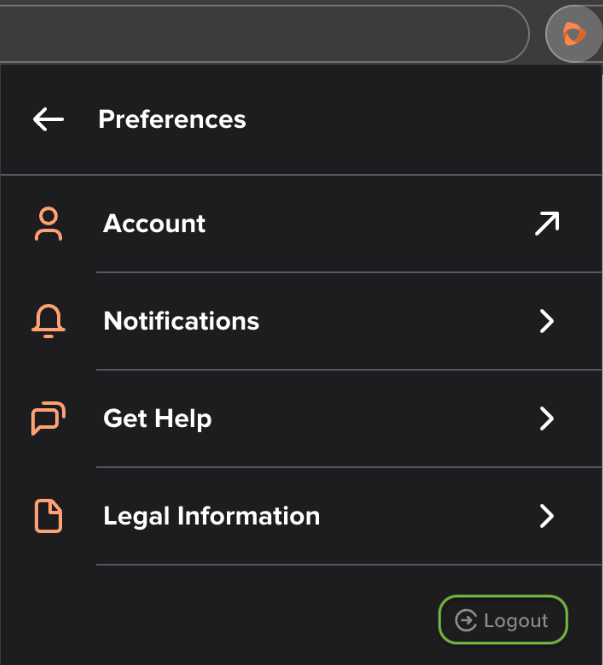
To sign out of the FastVPN extension on Chrome, press the Logout button:
And that's it! Enjoy streaming using the FastVPN extension on Chrome. If you need any further assistance, please contact our Support Team.